Cut a recording
Course administrators can remove parts of a recorded lecture, for example a break, a technical problem or the minutes before the lecture starts. You mark the parts to remove in the browser. A runner then re-encodes the recording without them, either replacing the recording or making a new lecture of the result.
A lecture can be cut once it has a finished recording and is not live.
Open the editor
On the Admin page's sidebar, navigate to:
Courses > 'Term' > 'Your Course' - Lectures
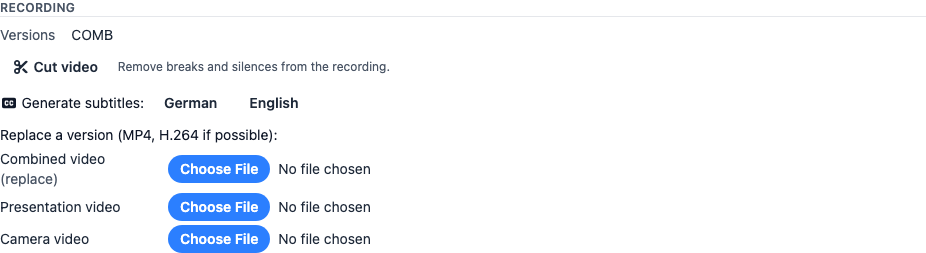
Open the lecture with Edit. The Recording section has a Cut video button.
The lecturer controls under the player on the lecture's watch page link to the editor too.
The first time you open the editor for a lecture, a runner builds the audio timeline. This takes a minute or two for a long lecture, and the page shows Building the audio timeline until it is done. The timeline is kept, so opening the editor again is quick. It is built again after the recording changes.
The editor
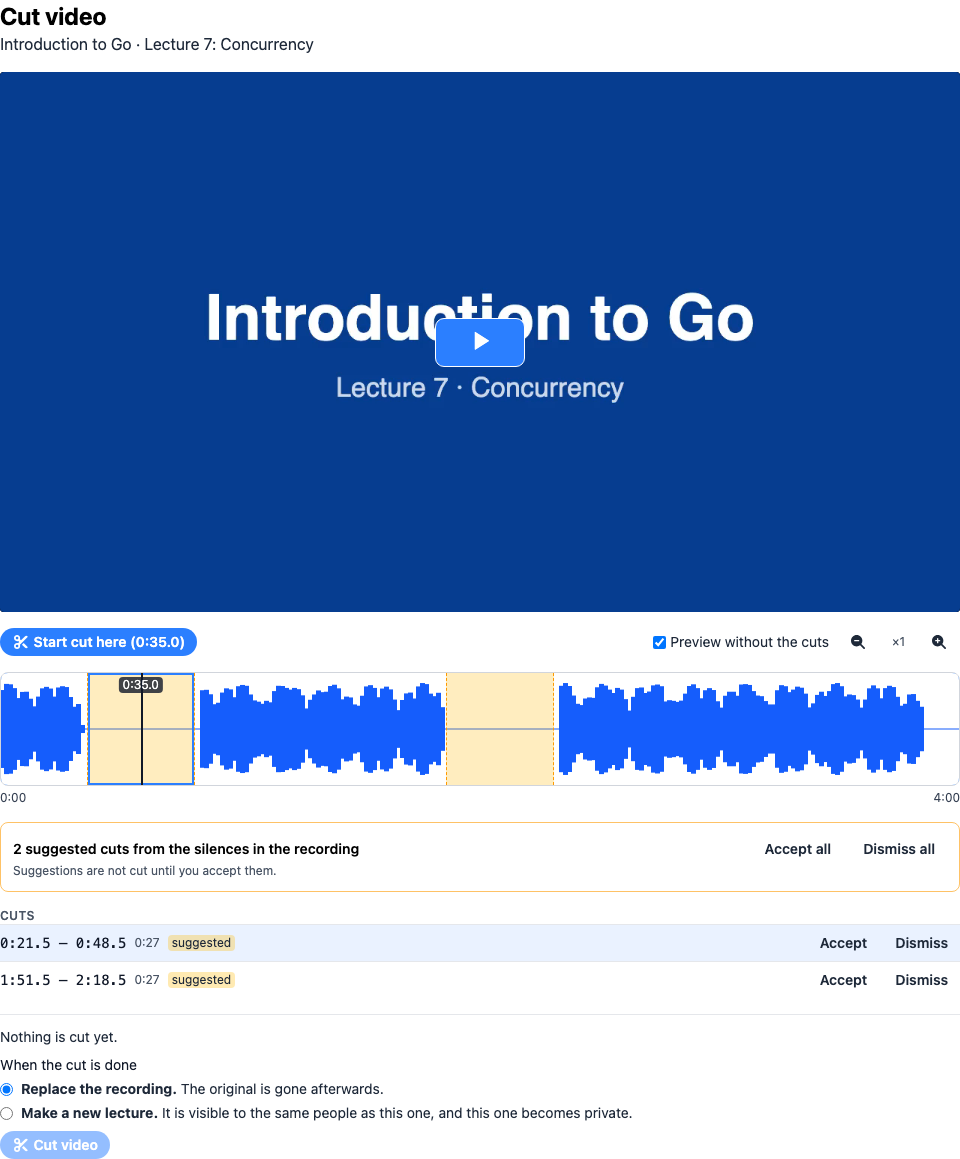
From top to bottom:
- The player shows the recording. It always plays the whole recording, not only the part a lecturer has trimmed with a start and end.
- The timeline shows the recording from left to right, with the loudness of the audio as a graph. Quiet parts are flat lines. The black line is the current position of the player.
- Suggestions, if the recording has long silences. See below.
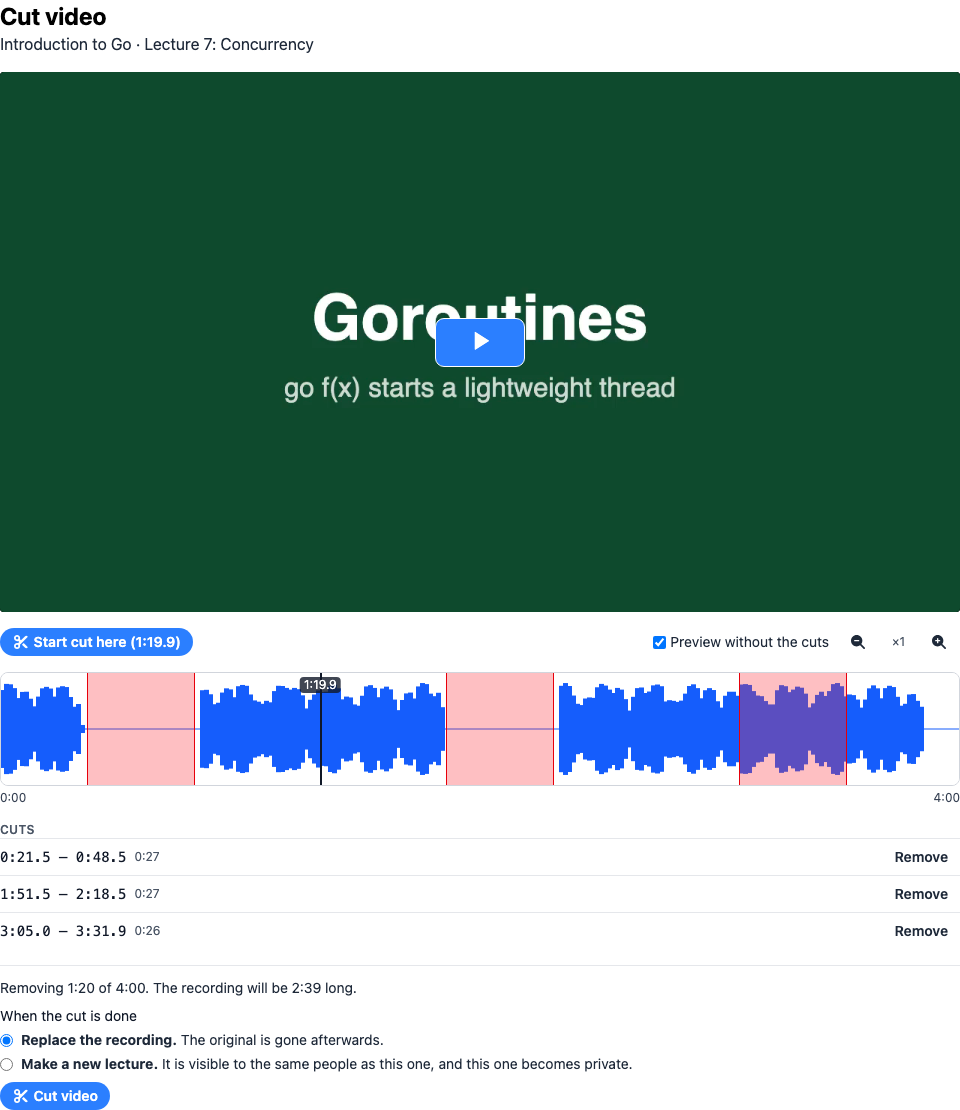
- The cuts you have made, and what they leave of the recording.
Make cuts
You can make a cut in three ways:
- Drag over the timeline. Dragging backwards works too.
- Mark it while watching. Play or seek the video to where the cut starts and click Start cut here. Then go to where it ends and click End cut here. The cut ends up on the timeline.
- Accept a suggestion.
To change a cut, drag one of its edges. To seek, click anywhere on the timeline. Click a
cut to select it, and press Delete to remove it. Remove next to a cut in the list
does the same.
Some more help:
- Zoom with the magnifier buttons, up to 16 times. A long lecture is only a few pixels per second wide otherwise.
- With the timeline focused, the arrow keys seek by one second, and by ten seconds with
Shift. - Preview without the cuts makes the player skip the cuts while it plays, so you can hear what the result will sound like. It does not skip when the video is paused, so you can still look at a cut.
- Cuts that touch or overlap become one cut. A cut must be at least half a second long, and at least one second of the recording has to remain.
Suggested cuts
Silences in the recording, stretches of at least 30 seconds without sound, are proposed as cuts. They are drawn dashed and orange and labelled suggested. A suggestion leaves a second and a half of the silence at both of its ends, so that the last words before it and the first after it are not clipped.
Suggestions are not cut until you accept them. Use Accept or Dismiss on a single suggestion, or Accept all or Dismiss all. Dragging a cut over a suggestion accepts what it covers.
Cut the video
Below the list of cuts you see how much is removed and how long the result will be. Choose what happens to the result:
- Replace the recording. The recording is replaced and the original is gone afterwards. The editor asks once more before it does this.
- Make a new lecture. The result becomes a new lecture in the same course, with the title, description and the other settings of the original. Once it is done it is visible to the same people as the original, and the original becomes private. Until then it is private and has no recording.

Then click Cut video. The page shows how far each version of the recording has got.

The recording is encoded again to cut it exactly where you marked, so this takes a while, about as long as converting an uploaded video. You can leave the page. The lecture's card on the lectures page shows the progress too.
When all versions are done, Watch the cut video opens the lecture.
Things to know
- All versions are cut the same. A lecture can have a combined, a presentation and a camera version. You see and cut the combined one, and the same ranges are cut from the others. If the versions differ in length by more than 60 seconds, they cannot be cut together and the editor says so instead of cutting.
- Sections and trimming move along. The video sections of the lecture, and a start and end set earlier, move to where they are in the cut recording. A section that was inside a cut moves to where the cut was.
- Silences are detected again once the cut is done, so skipping silences works on the cut recording.
- Subtitles are not changed. Subtitles made before the cut no longer fit. Generate them again in the Recording section. A new lecture starts without subtitles.
- Only one cut at a time. The editor refuses to start a cut while a version of the lecture is converting, and it waits for the conversion if it is opened while one runs. A cut that is not finished counts too: until every version is cut, or the cut is given up, the page shows how far it is instead of the editor.
If a version fails
A cut is only finished when every version is cut. If one fails, for example because its video cannot be read, the page says The cut did not finish and names the version and the reason. The cut stays open, with the cuts you made, so nothing has to be marked again.
- Cut the failed versions again runs just the versions that failed, with the same cuts. The versions that are done are not cut a second time.
- Give up the cut closes it.
- For a new lecture, the new lecture is removed. The original was never changed.
- For a replaced recording, the versions that are cut stay cut, as the original of those is gone. If the combined version is one of them, the sections and trimming of the lecture move along with it, as they would have when the cut was finished. The versions that failed keep what you cut out of the others, and the page names them, so you know to upload them again.
If nothing was cut yet, giving up changes nothing.